
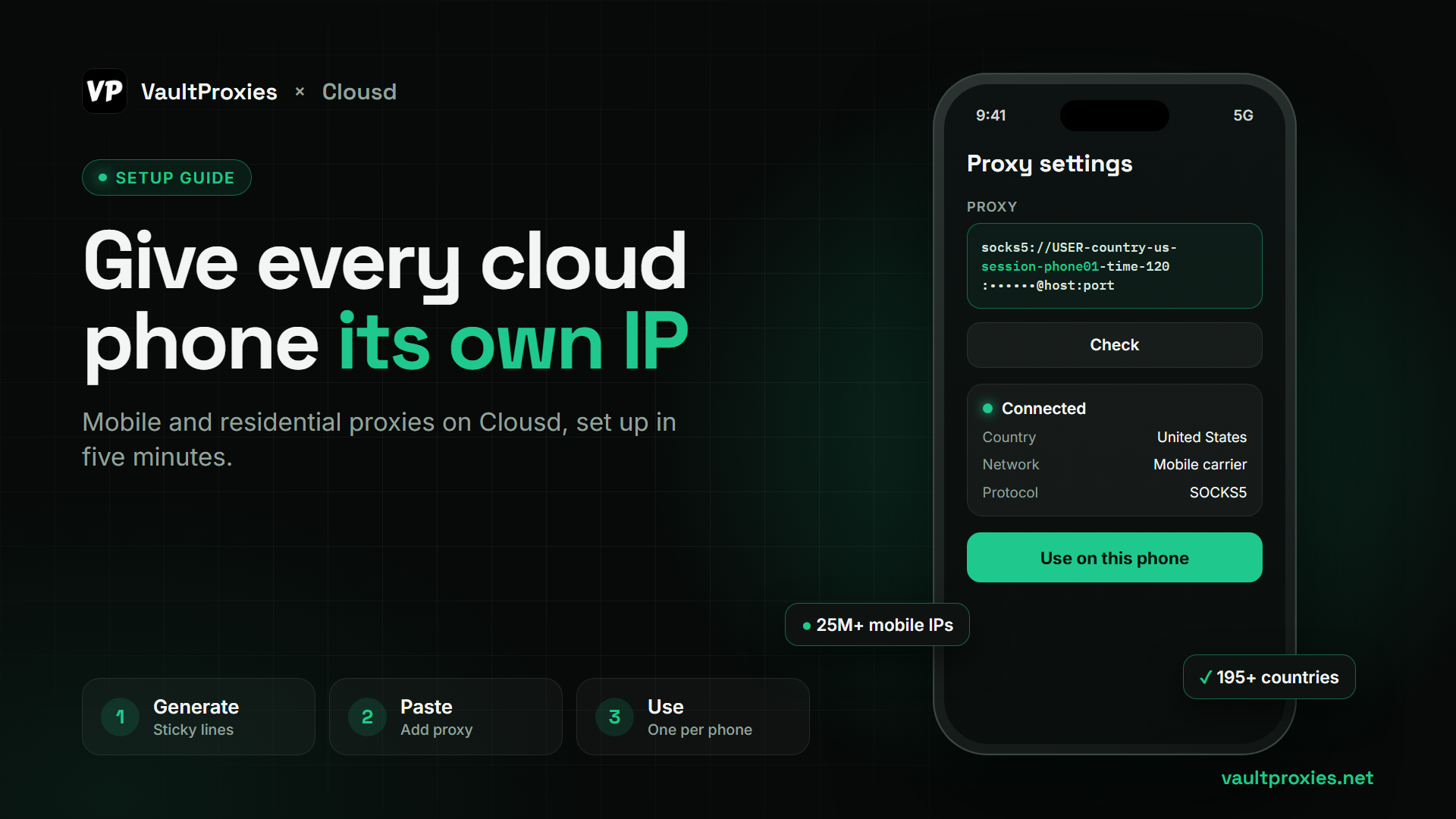
Clousd runs cloud Android phones on real ARM servers: real device models with matching fingerprints, controlled from your browser, over ADB or through an API. Every phone can run on its own proxy, which makes it a natural fit for managing social media and marketplace accounts with VaultProxies IPs.
This guide sets up one proxy per phone, so each account keeps its own IP.
1. Generate your proxy lines
In your VaultProxies dashboard, open the Proxy Generator, pick your plan and country, choose HTTP or SOCKS5, and select Sticky. Set how many lines you need (one per phone) and copy them.
Sticky lines keep the same IP for the whole session, which is what a phone running an account needs. Rotating lines change IP on every connection and are better left for scraping.
2. Start a phone on Clousd
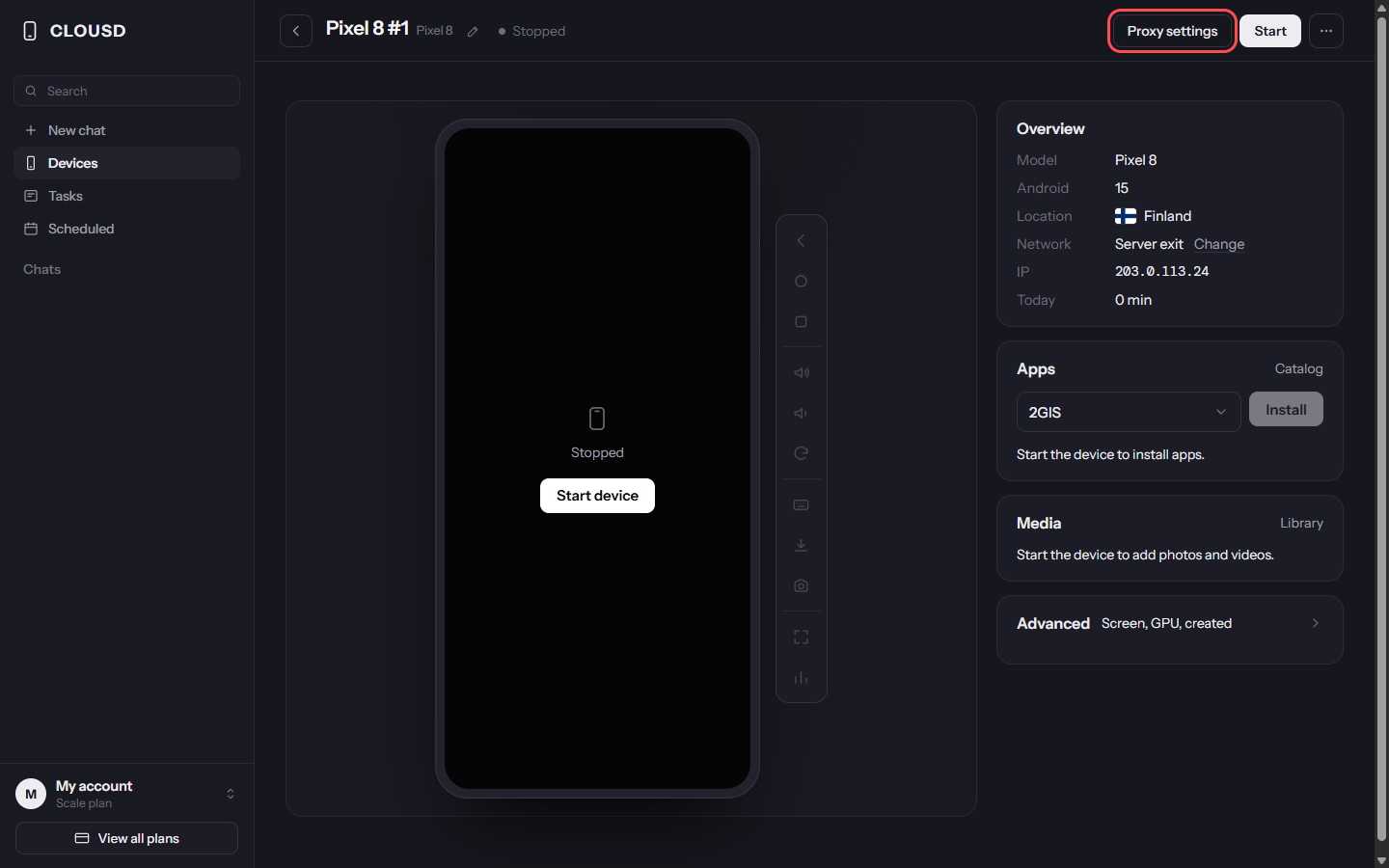
Create an account at clousd.com/signup and start a phone (the first 30 minutes are free). Open the phone and press Proxy settings. This opens the Network page.
3. Add your proxy
Press Add proxy and paste one of your VaultProxies lines. Clousd accepts host:port:user:pass, user:pass@host:port, or a full socks5:// or http:// URL, so a line from the generator works as it is.
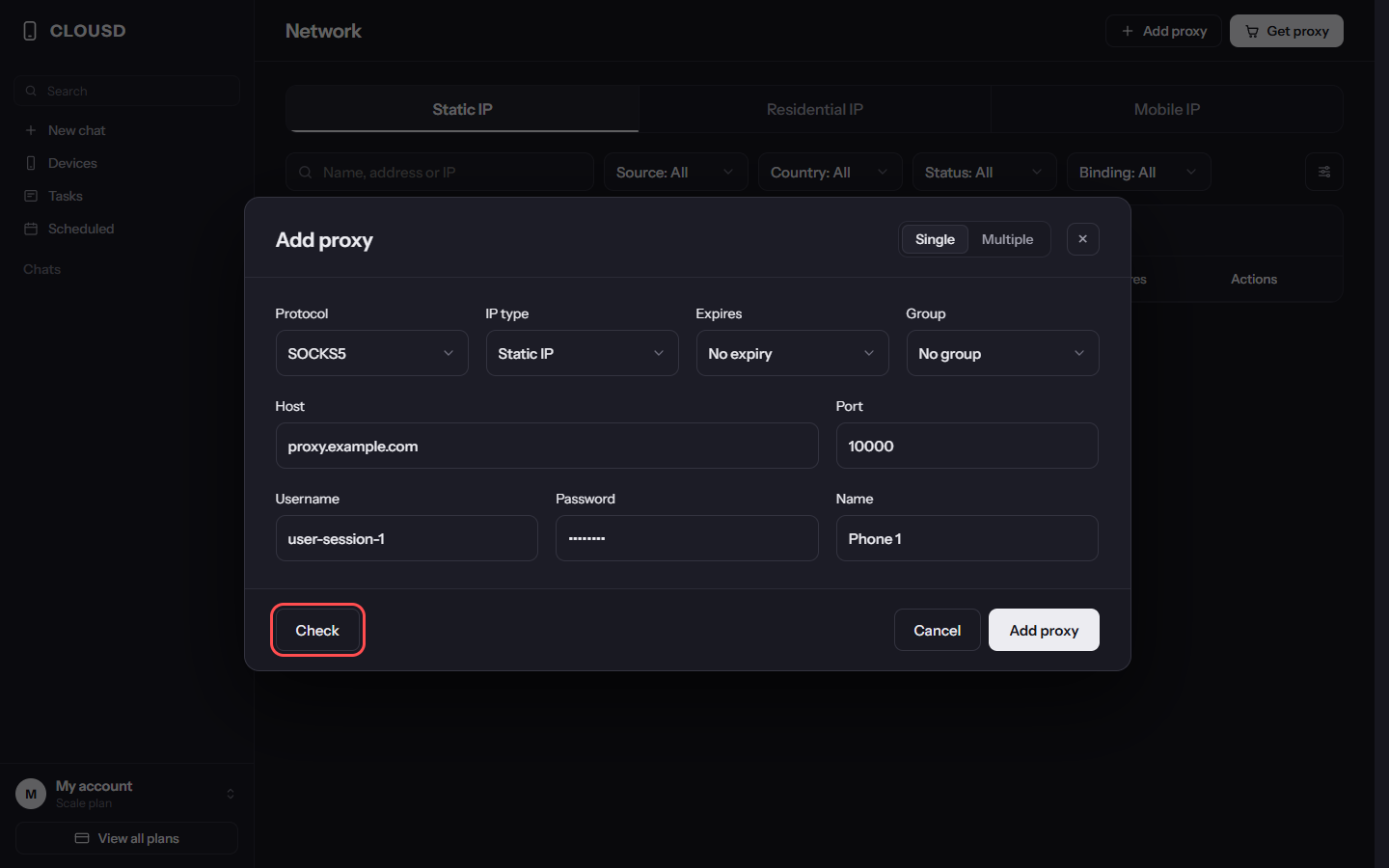
Press Check. Clousd works out the protocol (SOCKS5 or HTTP) by itself and shows the exit IP, country and ISP.
4. Put the phone on it
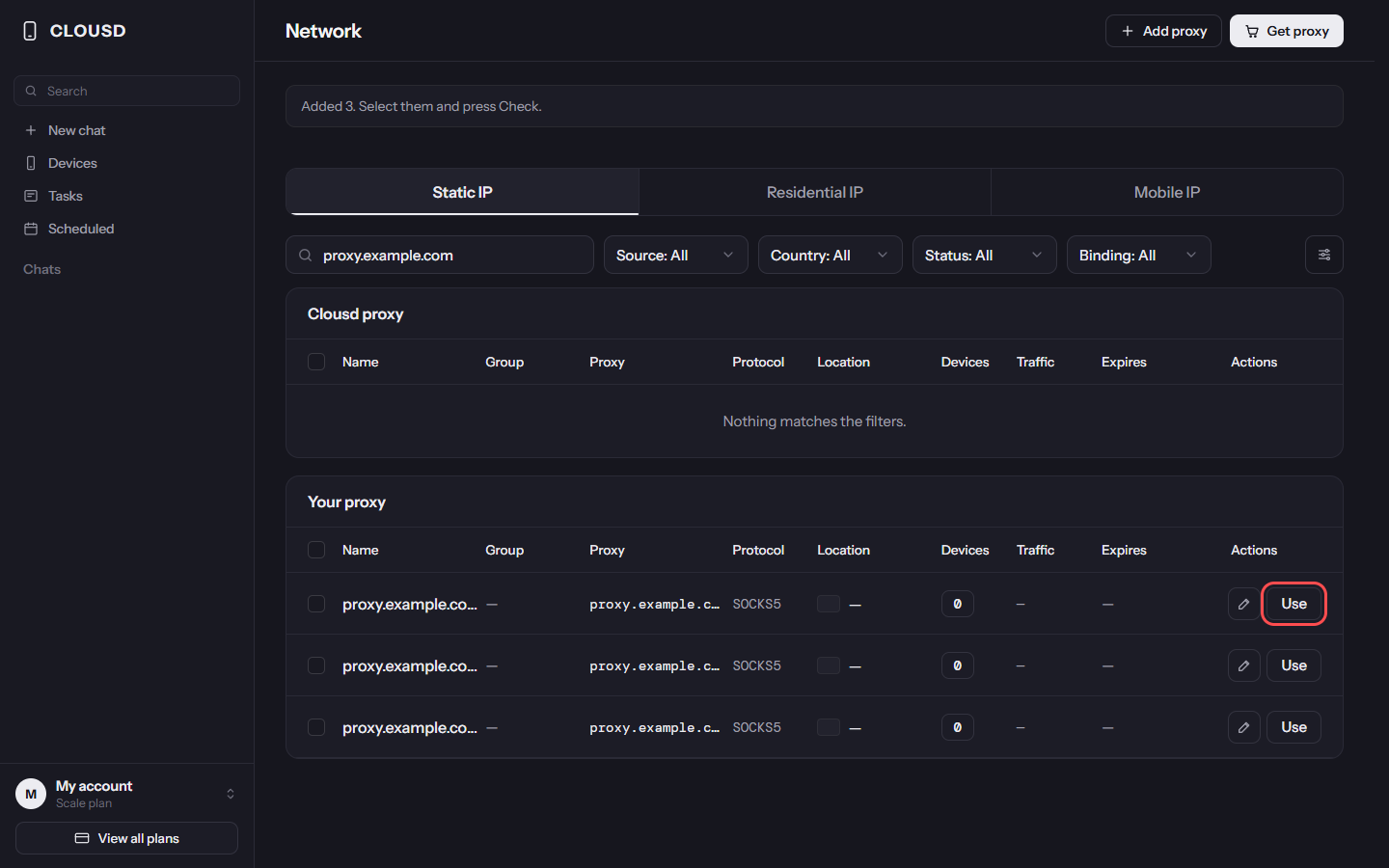
Press Use next to the proxy and tick the phones that should go through it.
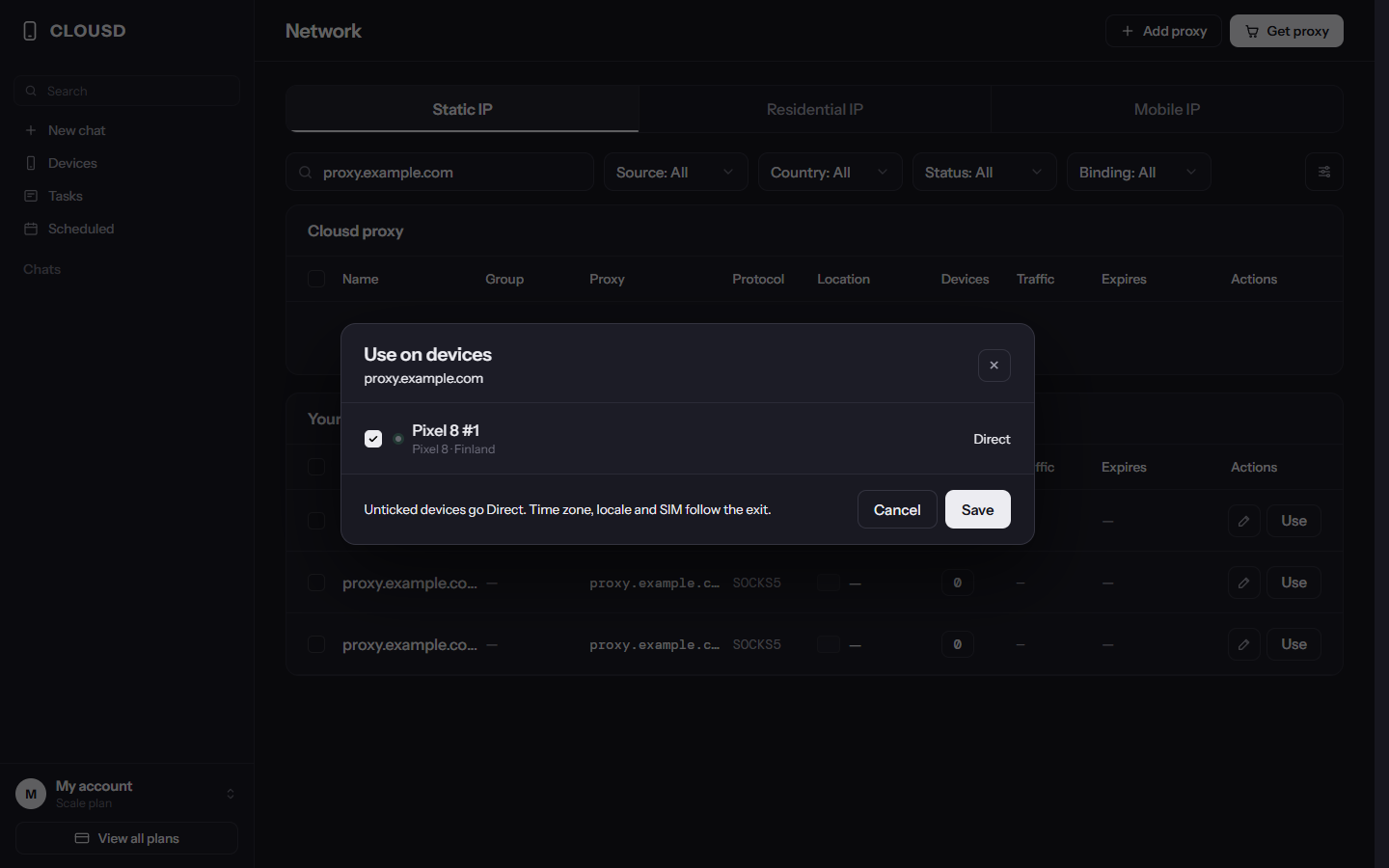
All of the phone's traffic goes through the proxy, apps included. If the proxy stops answering, the phone goes offline instead of falling back to the server's own address, so an account never shows up from an IP you didn't choose.
The phone's time zone and language follow the country of the exit. With a mobile proxy, the phone uses mobile data instead of Wi-Fi.
Many phones at once
Switch Add proxy to Multiple and paste your lines, one per line.
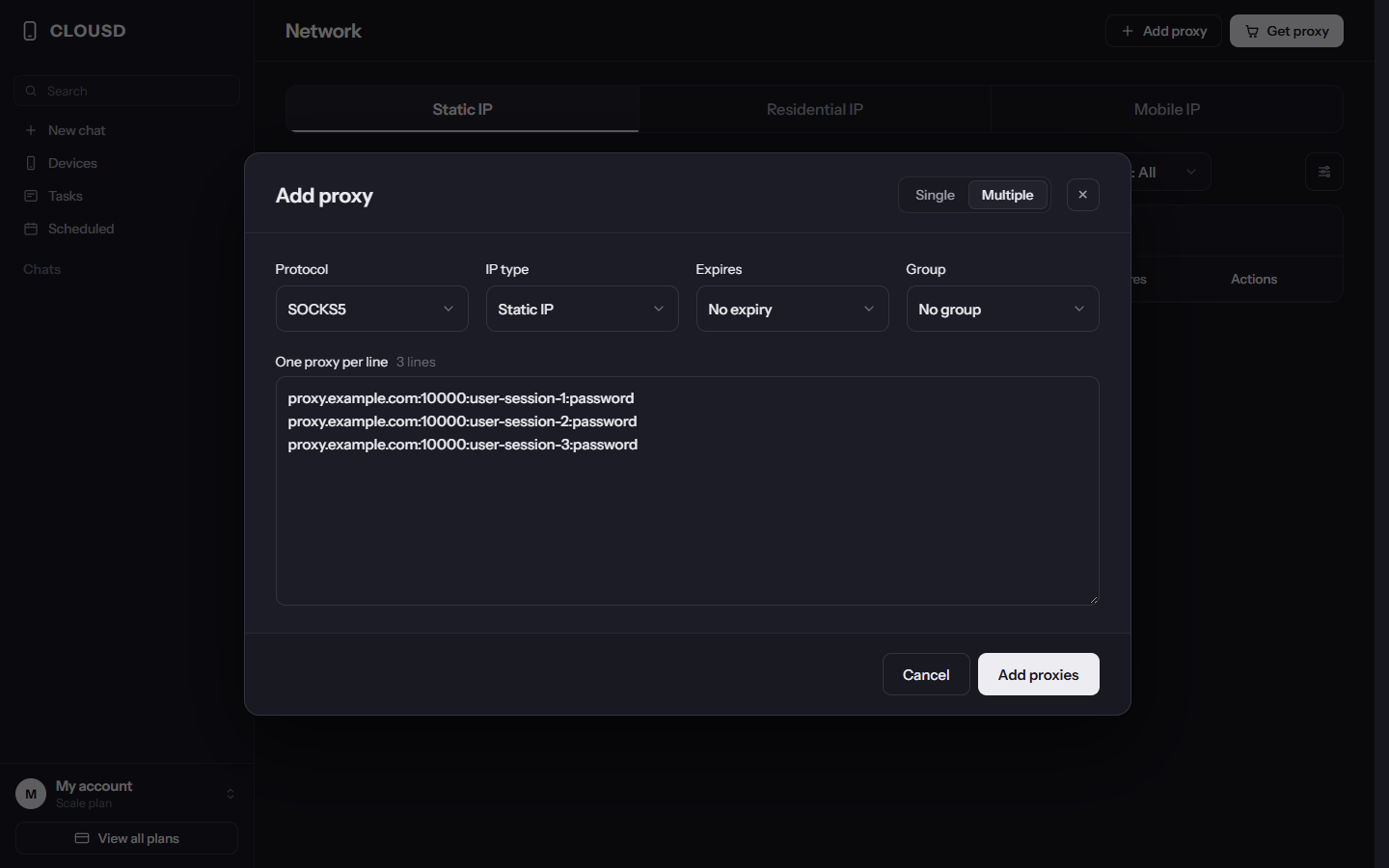
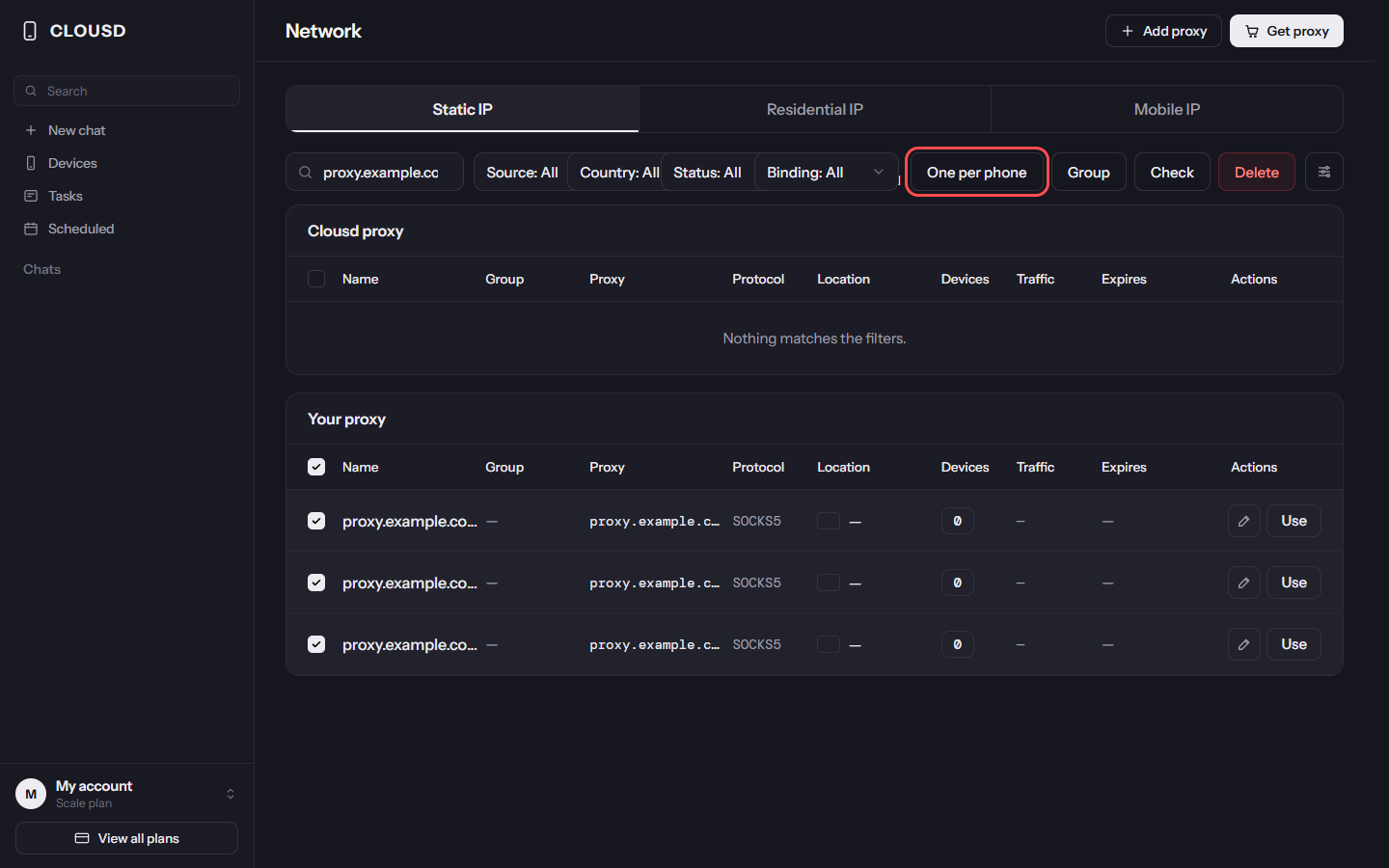
Then select them and press One per phone: every phone without a proxy gets its own, in phone order.
Getting a new IP
VaultProxies lines are either rotating (a new IP on every connection) or sticky (the same IP for the whole session). To move a phone to a new IP, generate a fresh sticky line in the Proxy Generator (it gets a new session ID), add it on the Network page, press Use on it for that phone, and delete the old line.
Automating it
Everything above also works without the dashboard: the Clousd API can add proxies and set each phone's proxy, and the VaultProxies API can generate the lines, so a whole fleet can be set up from a script.